v1.4.1: A Desktop App and AI Session Tracking
Worktale leaves the terminal. A native desktop client for your work record, and full AI session tracking—cost, tokens, provider, model—baked right into your coding agent.
Two things we kept hearing
Since launching the CLI and Cloud, two requests kept coming up. The first: “I love the data, but I want to see it without running commands.” The second: “I’m spending real money on AI coding agents and I have no idea how much.”
v1.4.1 addresses both. A native desktop app that gives you everything the CLI does in a visual interface. And structured AI session tracking that captures exactly which provider, model, and tools you used—along with cost and token counts—automatically, every time you commit.
Worktale Desktop
The desktop app isn’t an Electron wrapper around a web page. It’s a Tauri + React app with a Rust backend reading the same local SQLite database the CLI writes to. Native performance. 2.8 MB installer (~10 MB installed). Fast cold start.
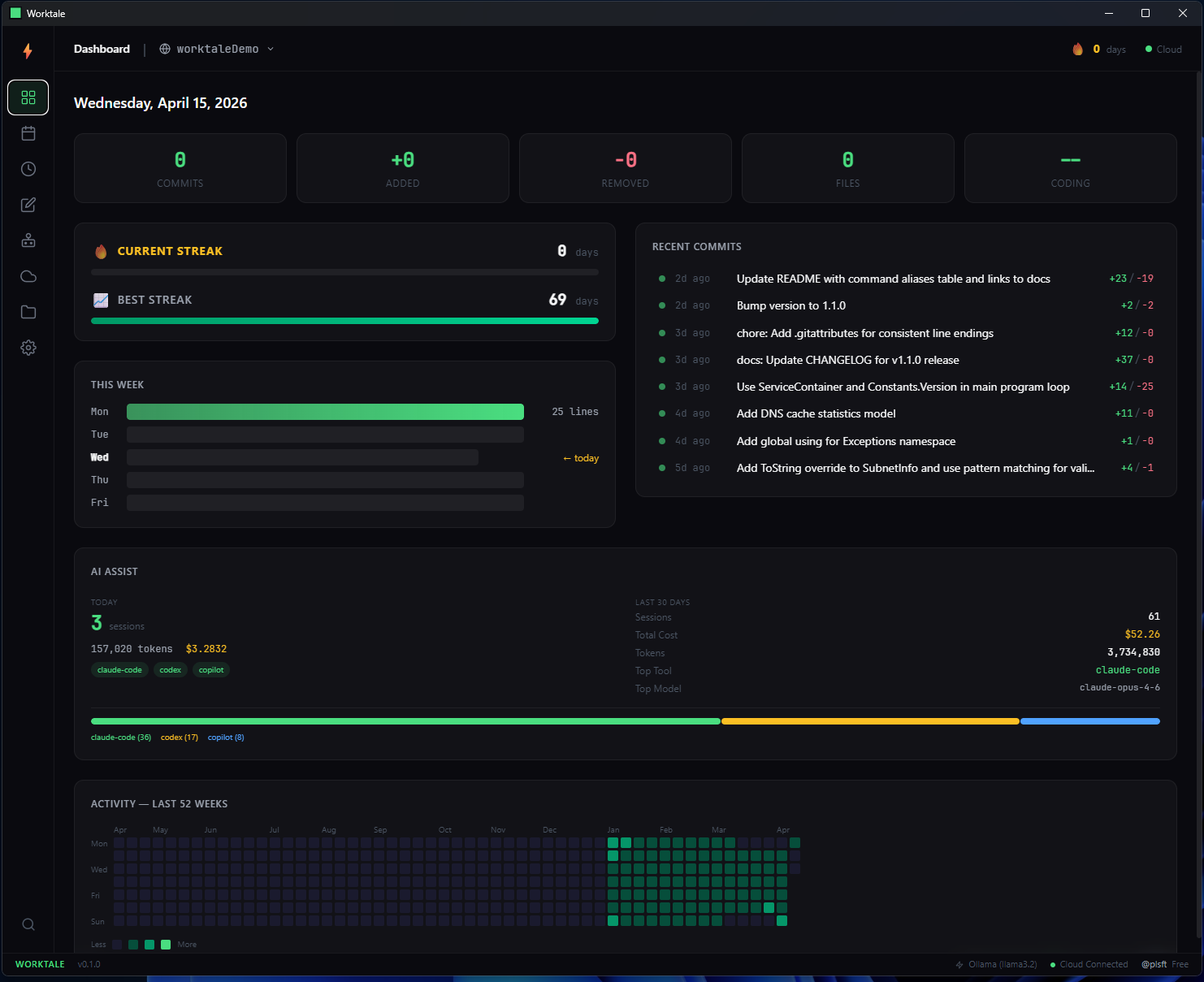
Eight views. Full CLI parity. Everything you can do from the terminal, you can do here—plus things that only make sense with a GUI:
- • Dashboard — current & best streaks, week chart, commit timeline, 52-week heatmap with hover tooltips
- • Daily Log — day-by-day commit history with editable notes. Click any day to drill into the details
- • History — all-time stats, top modules, coding hours heatmap showing when you actually work
- • Digest Editor — full CodeMirror markdown editor. Generate digests from commit history, edit, publish to Cloud
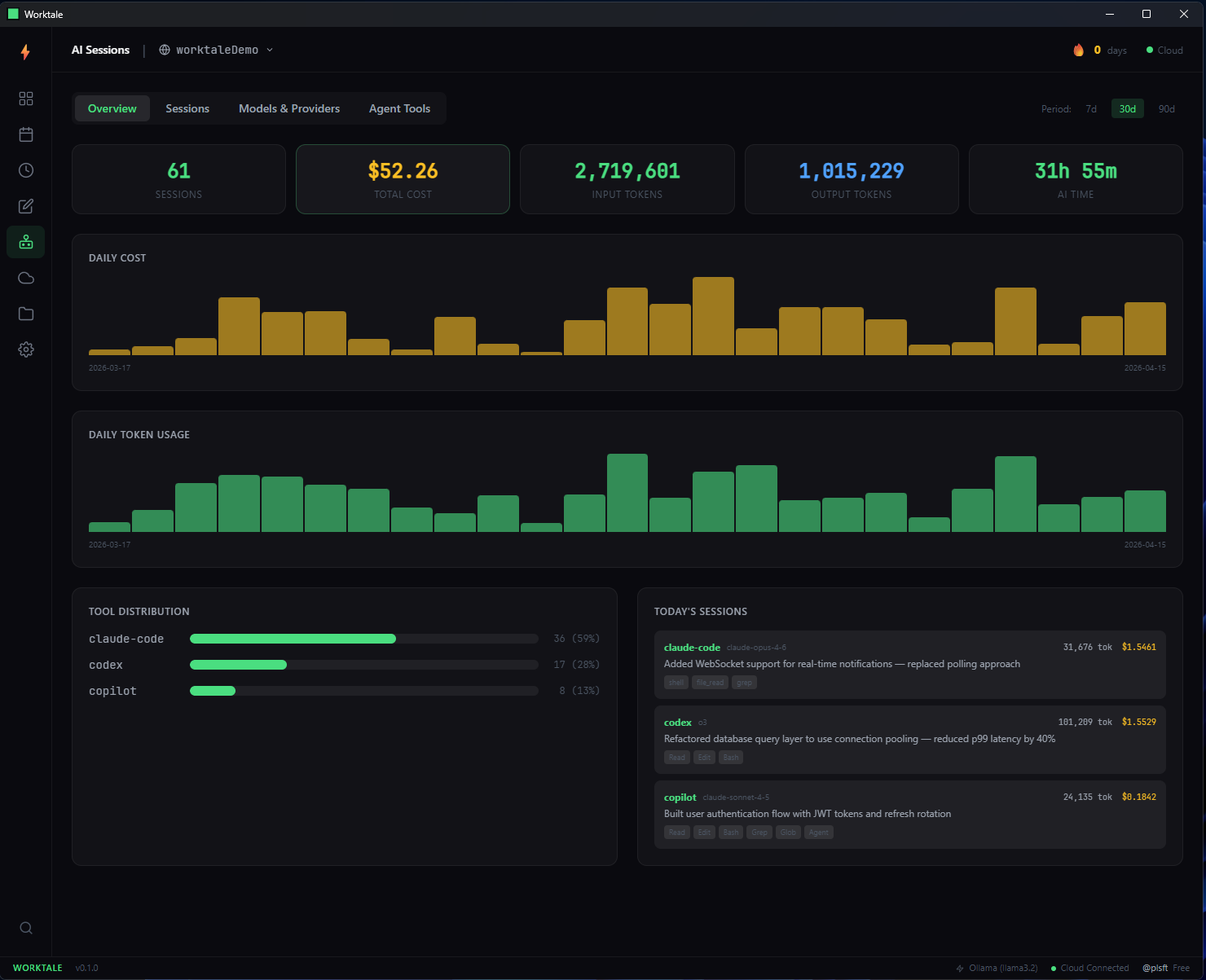
- • AI Sessions — cost tracking, token usage charts, tool distribution, provider & model breakdowns
- • Cloud Panel — publish digests, sync with worktale.dev, manage your public profile
- • Repo Manager — add, remove, and browse all tracked repositories
- • Settings — providers, timezone, color scheme, cloud config
Ctrl+K opens a command palette. Ctrl+1 through Ctrl+8 jumps between views. It’s keyboard-first—designed for developers who don’t reach for the mouse.
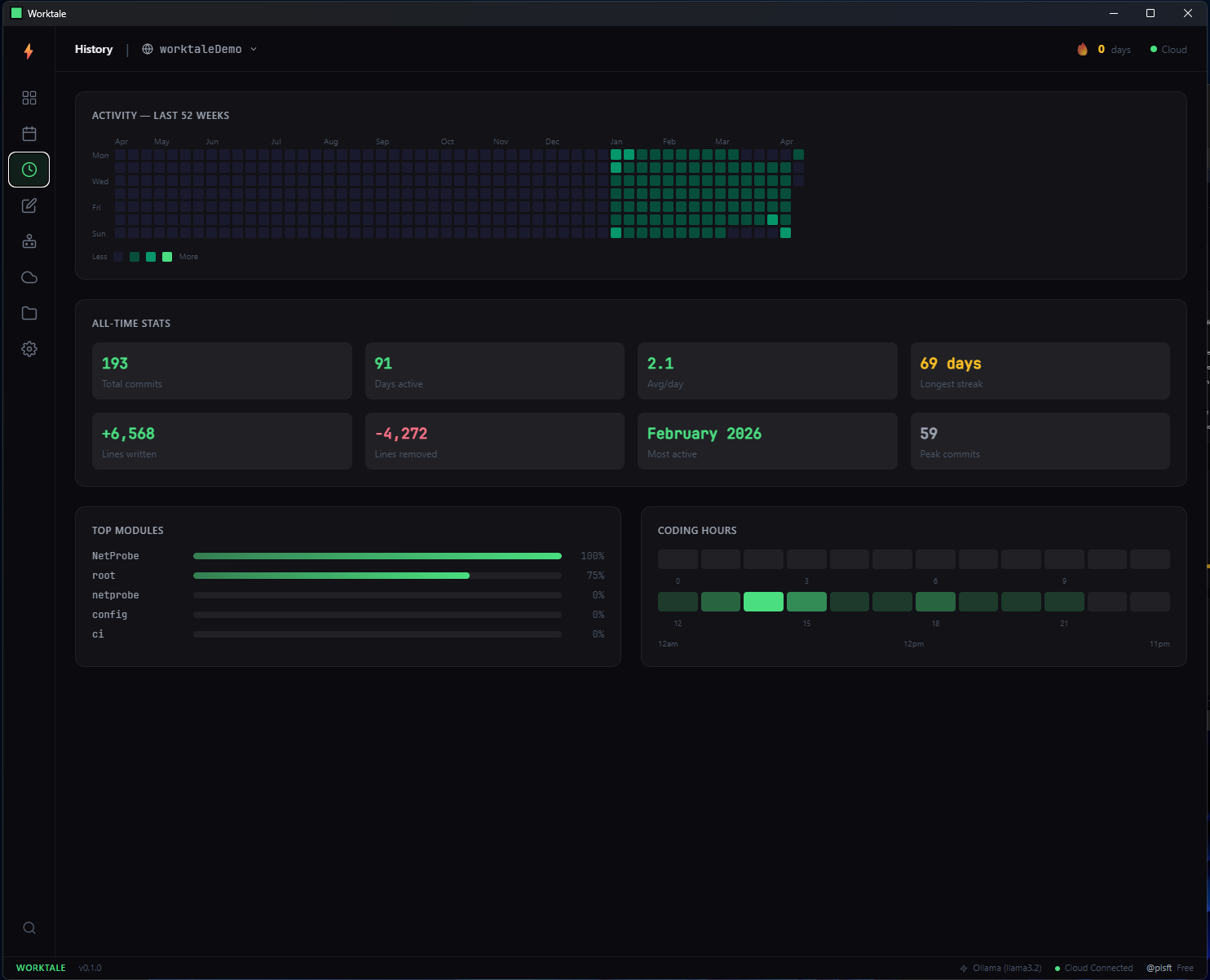
Same database, zero migration. The desktop app reads the same ~/.worktale/data.db that the CLI writes to. Install the app, open it, and your entire work history is already there. Nothing to import, nothing to sync.
AI session tracking
Here’s the reality of AI-assisted development in 2026: you’re spending money on it, and you have no idea how much. You switch between Claude and GPT depending on the task. You use Codex for one repo and Copilot for another. At the end of the month, you see a bill and try to reverse-engineer what happened.
Worktale now tracks all of it. What gets captured depends on which host you use:
- • Provider & model — Anthropic, OpenAI, or GitHub. Claude Opus, GPT-4o, o3, whatever you used
- • Cost in USD — automatic on Claude Code (computed from token usage against published rates), aggregated daily, weekly, monthly
- • Input & output tokens — automatic on Claude Code via transcript parsing; know exactly how much context you’re burning
- • Agent tools used — Read, Edit, Bash, Grep, Write, Agent—see which tools your AI actually reaches for
- • MCP servers — GitHub, Linear, Slack—which integrations the agent used during the session (Claude Code only)
- • Duration & commits — how long the session ran, which commits it produced
- • Narrative note — the AI writes a 1–2 sentence summary of what it built and why, after every commit
Three hosts, one CLI
Official plugins for Claude Code, OpenAI Codex, and GitHub Copilot. All three record a per-commit narrative and session metadata via worktale session add. The one difference is how much the plugin can capture on its own versus how much the agent has to supply.
| Host | Plugin type | Automated capture | Agent-supplied |
|---|---|---|---|
| Claude Code | Skill + SessionEnd hook | Model, input/output tokens, cost, tools, MCP servers, duration | Per-commit narrative |
| OpenAI Codex | Skill + Stop hook | Model, input/cached/output tokens, cost, duration | Per-commit narrative + tools used |
| GitHub Copilot | Agent + Stop hook | Model, input/cached/output tokens, cost, tools, MCP servers, duration | Per-commit narrative |
How automated capture works:
All three plugins use the same pattern — read session state Copilot/Codex/Claude already write to disk, sum tokens, attribute cost, then call worktale session add. Claude Code’s SessionEnd hook hands us the transcript directly; Codex persists rollouts at ~/.codex/sessions with token deltas; Copilot persists per-API-call assistant.usage events at ~/.copilot/session-state with a pre-computed cost field. Claude Code and Codex use built-in rate tables (Anthropic / OpenAI) for cost; OpenCode and Copilot read cost directly from the host because they pre-compute it themselves.
You can always record sessions manually on any host (or from any agent we haven’t shipped a plugin for yet) with worktale session add.
What a real Claude Code session looks like
I activated /worktale and asked Claude Code to add rate limiting. After each commit, Claude writes a 1–2 sentence narrative. When the session ends, the SessionEnd hook parses the transcript and records the aggregate metrics automatically.
# Claude Code session
> /worktale
Worktale narration active. I'll add context after each commit. Session metrics are captured automatically at session end.
# ...working on features...
$ git commit -m "feat: add rate limiting to upload endpoint"
⚡ worktale: captured (+89 / -12)
$ worktale note "Added rate limiting to /api/upload — previous impl allowed unlimited requests causing OOM in prod"
✓ Note added to 2026-04-16
# ...more work, more commits...
# Session ends. SessionEnd hook fires automatically:
$ worktale session add --provider anthropic --tool claude-code --model claude-opus-4-7 --input-tokens 58000 --output-tokens 1300 --cost 0.3113 --tools-used "Read,Edit,Bash,Grep" --mcp-servers "github" --duration 1842
✓ Session recorded for 2026-04-16
Those input/output/cost numbers aren’t guesses—the hook reads transcript.jsonl, sums every assistant turn’s usage block (including cache reads and cache writes), and multiplies against the published rate table. You get the same number you’d see on your Anthropic invoice.
The agent handles all of that. You just code. At end of day, open the desktop app or run worktale session stats and you get the full picture:
$ worktale session stats
AI Session Stats (last 30 days)
Sessions: 47
Total cost: $18.63
Tokens in: 412,800
Tokens out: 89,200
By provider:
anthropic 34 sessions $14.20
openai 8 sessions $3.10
github 5 sessions $1.33
Top models:
claude-opus-4-6 22 sessions
gpt-4o 8 sessions
claude-sonnet-4-5 12 sessions
In the desktop app, this becomes interactive charts—daily cost bars, token usage over time, tool distribution pie charts, model breakdowns. Four tabs: Overview, Sessions, Models & Providers, Agent Tools.
Why this matters
AI spend is the new cloud bill. It creeps up. You don’t notice until the invoice arrives. And unlike AWS, there’s no Cost Explorer breaking it down by service and resource.
Worktale gives you that visibility—per session, per model, per repo. You can see that you spent $14 on Claude Opus this week but only $3 on GPT-4o. You can see that 60% of your agent’s tool calls were Read and Bash. You can see that your longest session burned 40K input tokens on a single bug fix.
This isn’t just accounting. It’s understanding how you use these tools so you can use them better.
Getting started
Desktop app
Download, install, open. If you already have the CLI, your data is already there.
Windows x64 available now — download the latest installer (2.8 MB). macOS and Linux builds coming soon.
The desktop app requires the Worktale CLI to be installed. The app reads the same local database—it doesn’t replace the CLI, it complements it.
AI session tracking
# Update the CLI
$ npm install -g worktale@latest
# Install the plugin for your agent (Claude Code example)
> /plugin marketplace add worktale/worktale-plugin
> /plugin install worktale-plugin@worktale-plugin
# Activate in any session
> /worktale
Plugins for Codex and Copilot work the same way. See the integration docs for install instructions for all three.
You can also track sessions manually if your agent isn’t supported yet:
$ worktale session add --provider anthropic --model claude-opus-4-6 --tool claude-code --cost 0.35 --input-tokens 12000 --output-tokens 2800 --note "Refactored auth middleware"
✓ Session recorded for 2026-04-16
Still local. Still private.
Nothing about this changes the privacy model. AI session data lives in the same local SQLite database as everything else. No network requests. No telemetry. The desktop app is a local binary reading a local file. Cloud sync remains strictly opt-in.
Your AI spend data is yours. Worktale doesn’t phone home with your cost or token data. It never will. The entire database is a single file at ~/.worktale/data.db. Delete it and everything is gone.
What’s next
macOS and Linux desktop builds are next. On the roadmap: surfacing AI session data on Cloud profiles at worktale.dev—so your public portfolio could show cost trends, model preferences, and tool patterns alongside the commit history. Today the data is captured and stored, but only visible in the CLI and desktop app.
The CLI stays free and open source. Cloud stays the paid product. Desktop is free.
Links:
- • Download Worktale Desktop (Windows x64 installer, 2.8 MB)
-
•
npm package —
npm install -g worktale@latest - • Integration docs for Claude Code, Codex, and Copilot
- • Full documentation
- • Worktale Cloud — public profiles, AI digests, standup generators